- QR code
- Guest photos
- Weddings
- Events
QR Code Photo Sharing for Weddings & Events
By the Inbitado team7 min read
On this page
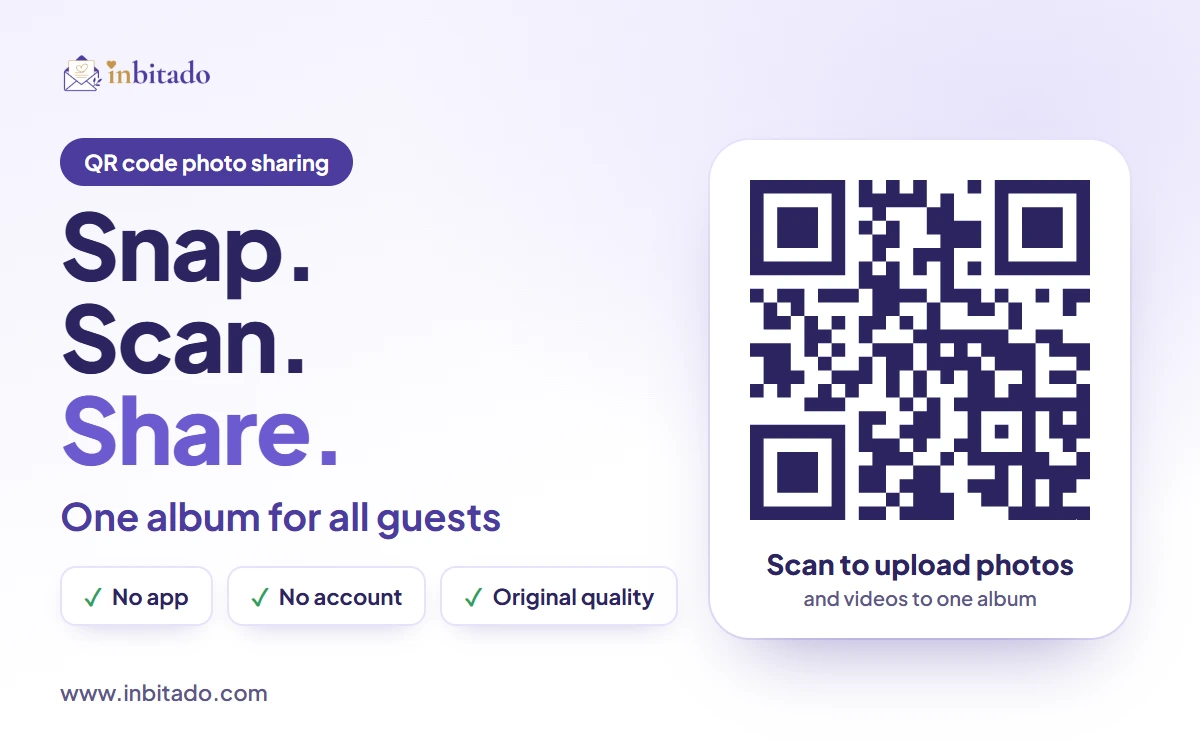
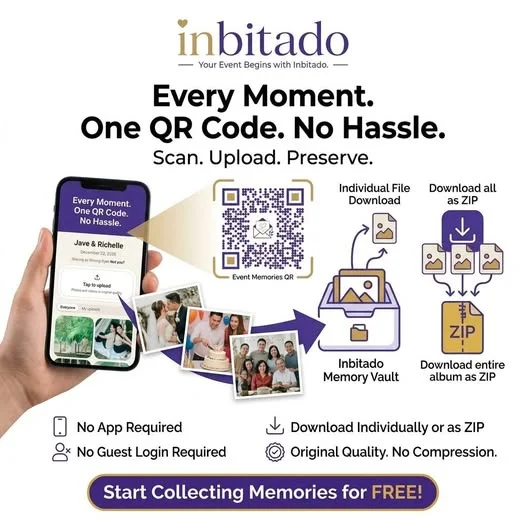
Snap, scan, share. That is the whole idea behind QR code photo sharing: your guests take photos and videos at your wedding or event, scan one QR code, and everything lands in one album for all guests. No app to install, no account to create, and no chasing forty people for their pictures afterwards.
This guide explains how it works, what to look for in a tool, where to put the code at different kinds of events, and how to get more of your guests to upload.
What is QR code photo sharing?
QR code photo sharing is a way to collect guest photos and videos in one shared album. You create an album for your event and get a QR code that points to it. When a guest scans the code with their phone's camera, the album opens in the phone's browser, and they choose photos and videos to upload. Everything goes to the same place.
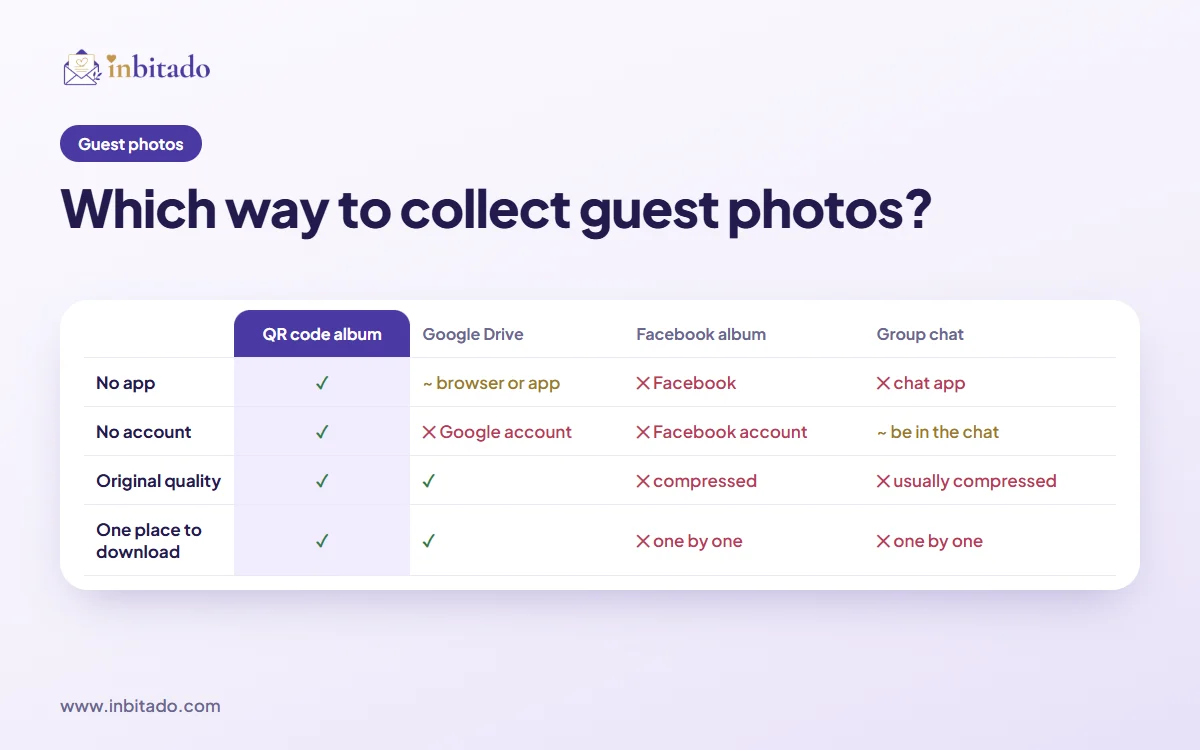
It is different from a group chat, where photos get compressed and buried under other messages, and from a shared drive folder, where guests often need an account first. The QR code is only the doorway. What matters is that it opens a page where uploading takes a few taps.
How it works, step by step
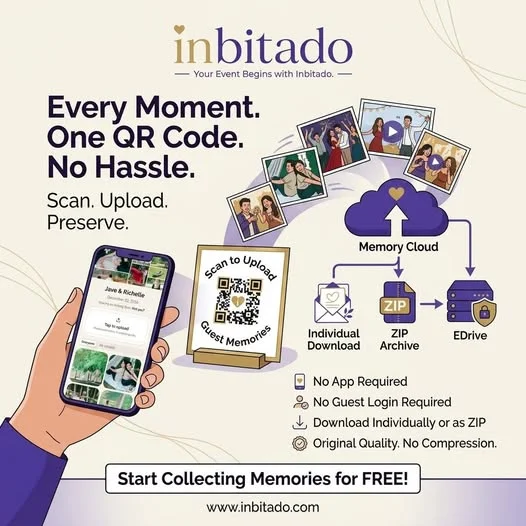
- Create your event's album. Add the event's name and date. The album, its QR code and its link are ready right away.
- Print or show the QR code. Put it on table cards, in the program, or on a screen at the venue.
- Guests scan the QR code and upload photos. They point the phone camera at the code, open the link, and pick photos and videos from their phone. They can add a short note too.
- Everyone's photos appear in one album. You can open it on the day to see the moments you missed.
- Download the originals. Save photos and videos one by one, or the whole album as a ZIP.
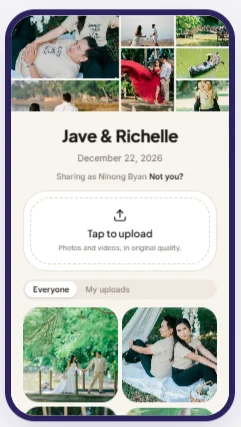
After scanning, a guest sees your event's name, one button to upload, and the shared gallery below it.
What to look for in a QR photo sharing tool
Most tools look alike in a demo. These are the things that decide whether your guests actually upload, and whether you are happy with the result:
- No app and no account for guests. Every extra step loses people, especially older relatives and your busiest friends. A good test: can someone who has never heard of the tool upload a photo within a minute of scanning?
- Original quality. Check that photos and videos are kept as they were taken. Chat apps often shrink them to save data.
- Videos. Guests film a lot at weddings and debuts. Find out how long a video can be on the plan you choose.
- A printable card. A bare QR code on a sheet of paper gets ignored. A card with your names and a short line, such as "Scan to share your photos", gets scanned.
- A way to keep it private. A PIN means only the people you share the album with can open it.
- Easy download. One ZIP of everything is far better than saving a hundred files one at a time.
- Clear storage and a clear end. Know how much space you get and what happens to your photos when a plan ends.
Where to put the QR code
The best place is wherever guests already look, at a moment when they have their phone in hand. Here are some ideas by type of event.
| Event | Where guests will see it | Tip |
|---|---|---|
| Wedding | Table cards, the program or menu, a welcome sign, a reception screen | Ask the emcee to mention it at the start of the reception and again later |
| Debut | Table cards, a screen near the stage, the photo area | Ask a few friends to upload early so others follow |
| Christening | A small card on the buffet or guest book table | Keep the words short: "Scan to share your photos of the baby" |
| Birthday | Table cards and the cake table | Put the album link in your invitation message too |
| Company event | Slides between sessions, a banner at the entrance | Show the code again at the end of the program |
| Reunion | A banner at the venue and the family group chat | Share the link too, for relatives who prefer to tap, not scan |
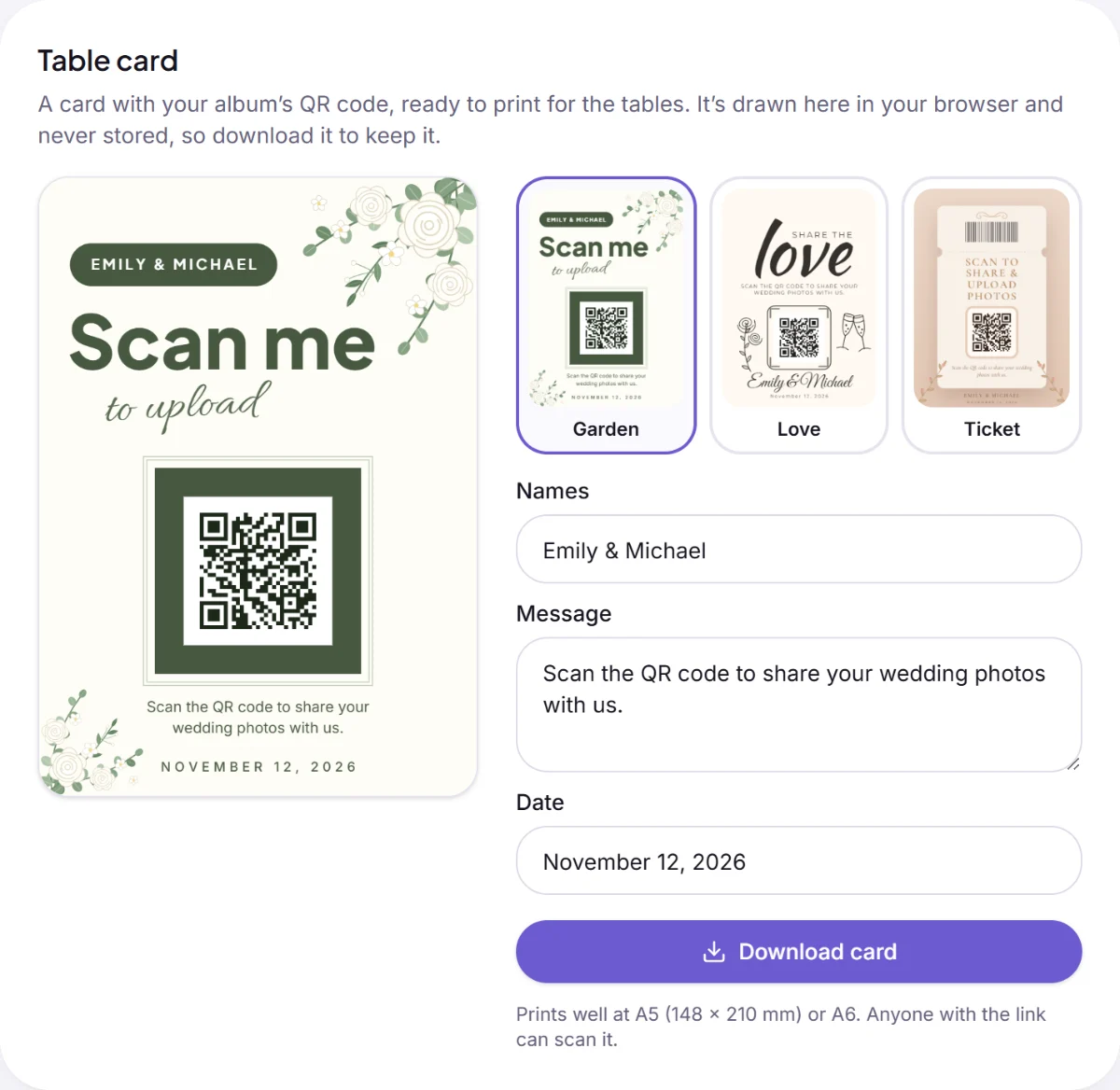
Print the code at least 5 cm (about 2 inches) wide, dark on a light background, with a clear margin around it. Test it before the day with both an iPhone and an Android phone, in the venue's lighting and from the distance a guest would hold the phone.
How to get more guests to upload
A QR code gets you the doorway. A few habits get people through it:
- Say what to do in three words: snap, scan, share. Short instructions beat long ones.
- Announce it at the right moments. Once at the start, once during dinner, and once before the games or the dancing.
- Give a small reason. "Add your photos and see everyone else's" is more inviting than "please upload".
- Share the link in your group chat. It helps guests who cannot scan, and anyone who wants to upload later. Some venues, especially in the provinces, have weak signal, and not everyone will upload on the spot.
- Remind everyone the next day. Many guests go through their photos the morning after the party.
For more on the day itself, see How to Collect Every Guest Photo at Your Wedding.
Privacy and who can see the photos
Treat the QR code like the key to the album. Share it with your guests, on cards and in your family chats, and avoid posting it publicly online. If the event is private, add a PIN to the album so only the people you give it to can open it.
It also helps to tell guests what the album is for: a shared collection for the hosts, where everyone's photos end up in one place. Then nobody is surprised.
What it costs
Prices vary between tools. Some charge per event, some by storage, some by the number of guests. With Inbitado, every account starts free. Paid plans add storage, called the E-Drive, for 1, 3, 6 or 12 months, with prices in pesos that you can pay by GCash, Maya, bank transfer or cash. How long a guest video can be depends on the plan. The pricing page always has the current plans.
Common questions
Do guests need to install an app?
No. They scan the code with their phone's camera and the album opens in the browser. There is nothing to install and no account to make.
Will the photos and videos be compressed?
Chat apps often shrink them. With Inbitado your originals are kept exactly as they were uploaded, and videos also get a lighter copy so they play smoothly on phones.
What if a guest cannot scan a QR code?
Share the album's link in your group chat. It opens the same album, and guests can tap it from Messenger or Viber.
Can guests upload after the event?
Yes, and many do, the morning after. Keep the link available for a few days and send a short reminder.
How do I get all the photos out?
Download them one by one, or the whole album as a ZIP, in their original quality.
Start your event's album
Inbitado gives each event one QR code and an album that guests upload to straight from their phone's browser, with no app and no account. You can also print a ready-made table card with your QR code, read guests' notes, and download everything whenever you like.
Read more on the guest photo sharing page, compare your options in QR Photo Sharing vs Google Drive vs Facebook Albums, or start free and try it at your next event.